← All manualsKRAKEN / USER MANUALDownload PDF ↓
USER MANUAL BETA

Deep waters.
Heavy fuzz.

Unleash Kraken.

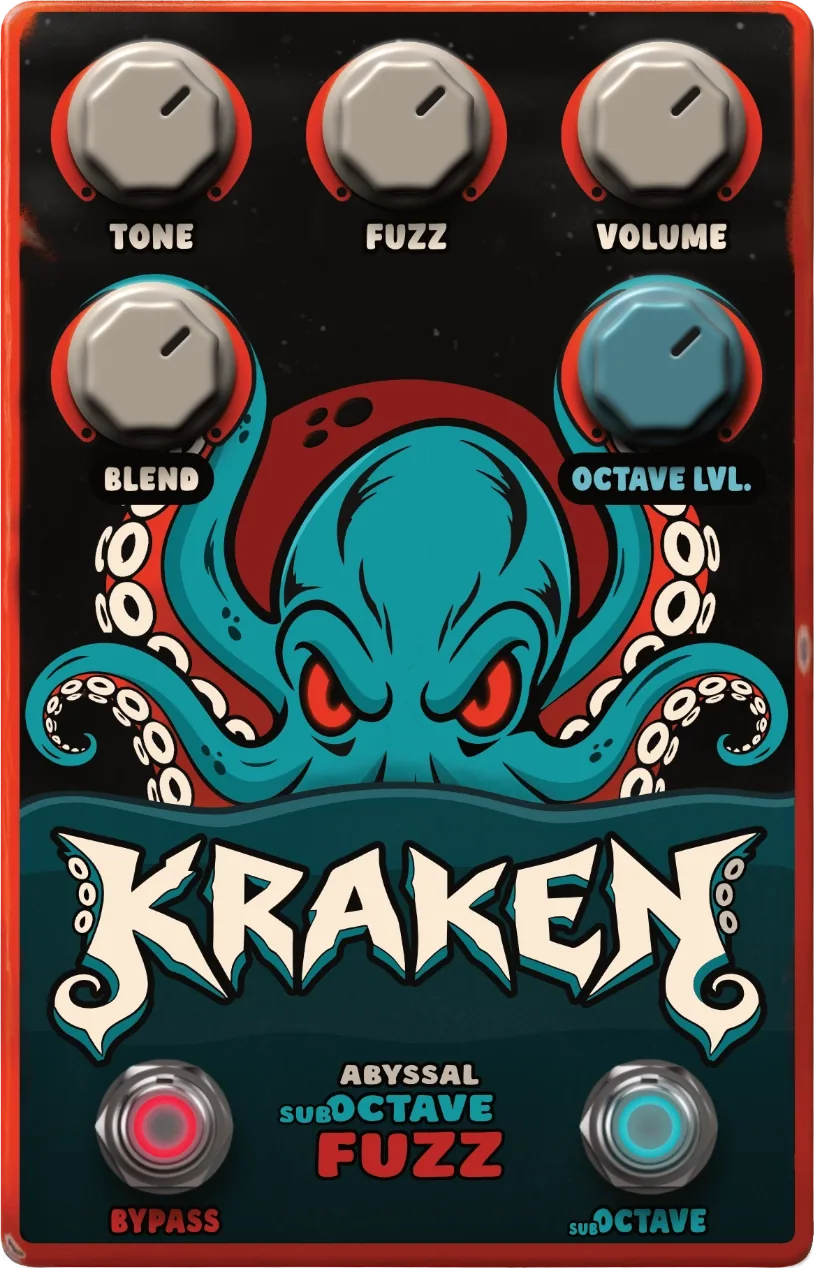
Kraken pairs a crushing fuzz core with a deep octave-down voice. At its heart, a low-latency and CPU-efficient polyphonic processor tracks your playing and recreates the character and detail of your sound one octave lower. It goes from thick, punchy riffs to full deep-sea mayhem.
VST3 / MAC + WINDOWSAU / MAC
Download & get started ↗
ORD. / BEAST 001Kraken plugin artwork
FROM THE ABYSS.
INTO YOUR SIGNAL CHAIN.
Unleash KrakenKRAKEN / 01 — 11
USER MANUAL BETA

Download Kraken.

01

Open your Ordesa DSP email

Open the email from Ordesa DSP containing your Kraken download link. Use the email address associated with your beta invitation.

02

Follow the download link

Open the link in that email to access your Kraken downloads. Sign in if prompted, using the account associated with your invitation.

03

Choose your platform

Download the ZIP for Windows or macOS to the computer where you will use Kraken. On macOS, choose AU for an AU-compatible DAW, or VST3 for a VST3 host.
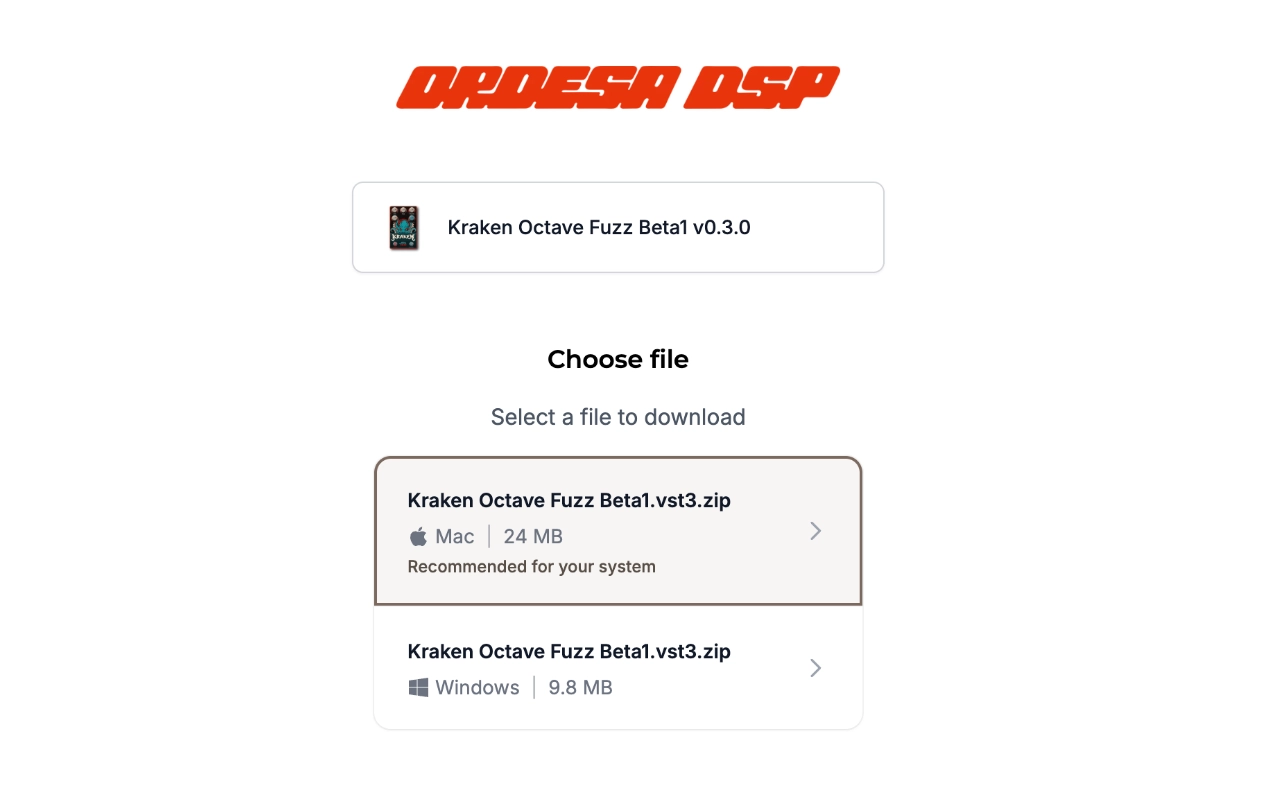
Kraken download page showing the Windows and macOS download options
Select the ZIP for your operating system.
Cannot find the email?

Check spam or junk folders. Contact contact@ordesadsp.com with your invitation email address if it is still missing.

DownloadKRAKEN / 02 — 11
USER MANUAL BETA

Install on Windows.

01

Extract the ZIP

Close your DAW. Right-click the downloaded Windows ZIP and choose Extract All….

02

Copy the plugin

Copy the extracted Kraken Octave Fuzz.vst3 into the folder shown opposite. If it is a folder, copy it whole.

Windows may ask for administrator permission to copy into Program Files.

03

Open your DAW

Reopen your DAW, rescan VST3 plugins if needed and load Kraken Octave Fuzz on an audio track.
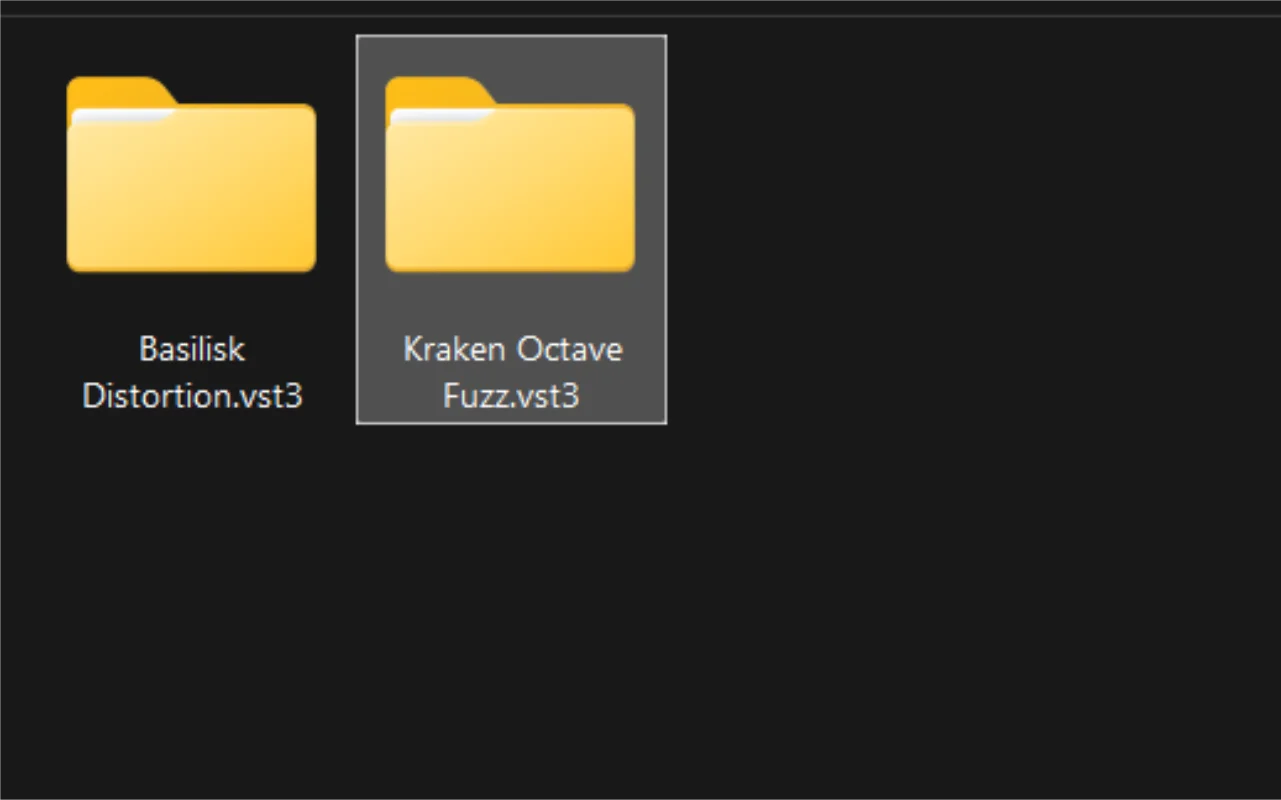
Windows File Explorer showing Kraken Octave Fuzz.vst3 in C:\Program Files\Common Files\VST3
The extracted plugin in the shared VST3 folder.
VST3 destinationC:\Program Files\Common Files\VST3\

Paste this path into File Explorer. Create the folder if needed.

First use

Follow the license activation steps.

VST3 folder reference: Steinberg VST 3 Developer Portal ↗

Windows installationKRAKEN / 03 — 11
USER MANUAL BETA

Install VST3 on macOS.

01 Install the plugin

Close your DAW and extract the ZIP. In Finder, press Shift + Command + G and open:

~/Library/Audio/Plug-Ins/VST3/
Optional · Create the VST3 folder

Only if the folder does not exist, run in Terminal:

mkdir -p ~/Library/Audio/Plug-Ins/VST3

Now copy Kraken Octave Fuzz.vst3 from the extracted ZIP into this folder.

02 Allow the beta to load

This beta is not yet notarized; macOS may show “Apple could not verify…”. Developer ID signing and notarization are planned for launch.

Open Terminal, paste this command and press Return:

TERMINAL / macOS
xattr -dr com.apple.quarantine \
  "$HOME/Library/Audio/Plug-Ins/VST3/Kraken Octave Fuzz.vst3"

Removes the download quarantine flag from only Kraken Octave Fuzz, without disabling macOS security settings. Run it only on the beta received directly from Ordesa DSP.

No output usually means success. Repeat after installing a new beta if needed.

03 Open your DAW

Reopen your DAW and rescan VST3 plugins if needed. Load Kraken Octave Fuzz on an audio track, then activate your license.
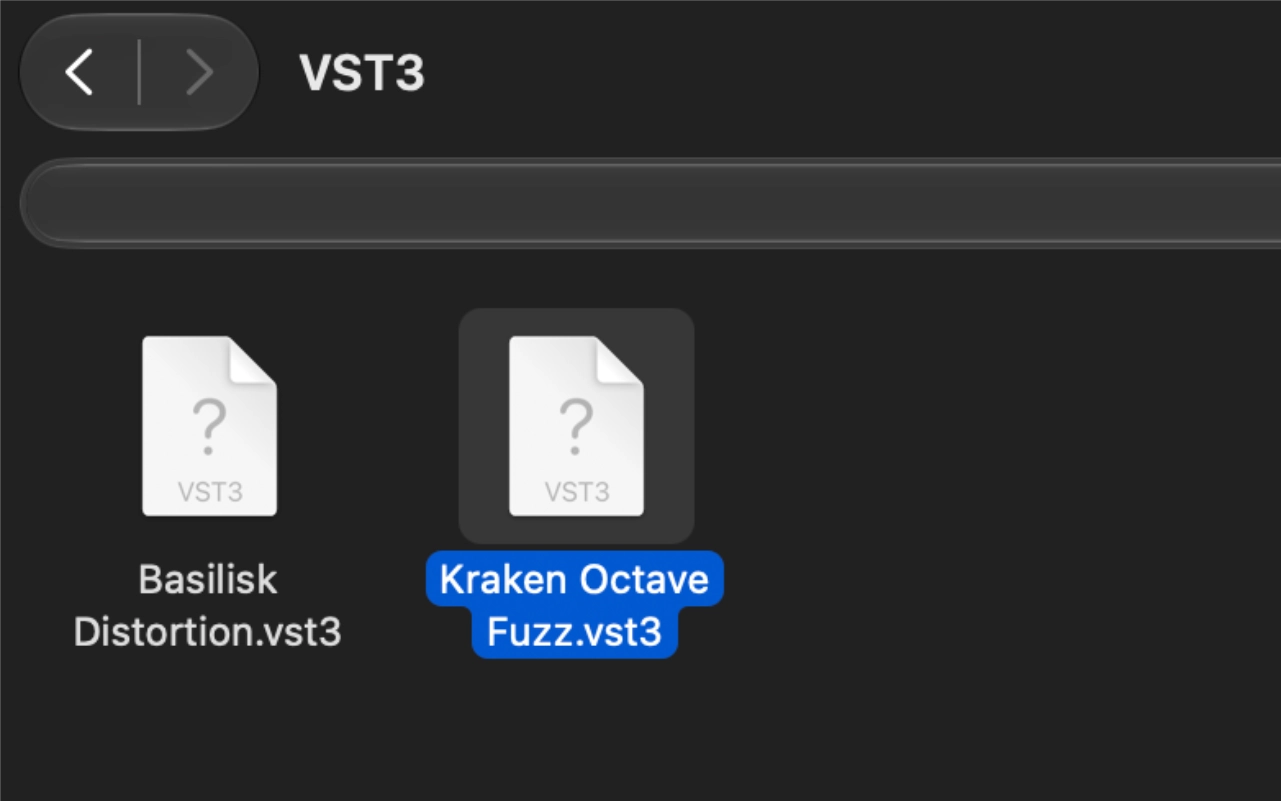
Finder showing Kraken Octave Fuzz.vst3 in the user Library Audio Plug-Ins VST3 folder
Kraken Octave Fuzz.vst3 in your user VST3 folder.
macOS installation · VST3KRAKEN / 04 — 11
USER MANUAL BETA

Install AU on macOS.

01 Install the plugin

Close your DAW and extract the ZIP. In Finder, press Shift + Command + G and open:

~/Library/Audio/Plug-Ins/Components/
Optional · Create the Components folder

Only if the folder does not exist, run in Terminal:

mkdir -p ~/Library/Audio/Plug-Ins/Components

Now copy Kraken Octave Fuzz.component from the extracted ZIP into this folder.

02 Allow the beta to load

This beta is not yet notarized; macOS may show “Apple could not verify…”. Developer ID signing and notarization are planned for launch.

Open Terminal, paste this command and press Return:

TERMINAL / macOS
xattr -dr com.apple.quarantine \
  "$HOME/Library/Audio/Plug-Ins/Components/Kraken Octave Fuzz.component"

Removes the download quarantine flag from only Kraken Octave Fuzz, without disabling macOS security settings. Run it only on the beta received directly from Ordesa DSP.

No output usually means success. Repeat after installing a new beta if needed.

03 Open your DAW

Reopen your DAW and rescan Audio Units if needed. Load Kraken Octave Fuzz on an audio track, then activate your license.

Kraken Octave Fuzz.component in your user Components folder.
macOS installation · AUKRAKEN / 05 — 11
USER MANUAL BETA

Activate your license.

Connect to the internet and use the account associated with your Kraken beta invitation.

01

Open Kraken

Load Kraken in your DAW. Choose Activate Invitation from its license screen.

02

Sign in through your browser

The plugin opens the Ordesa DSP activation page. Sign in with the email address that received your beta invitation.

03

Use your beta license

Select the Kraken license linked to your invitation and click Use license. Confirm activation for this computer.

04

Return to your DAW

Keep Kraken open. Complete the browser steps, then return to your DAW and wait for activation to finish.
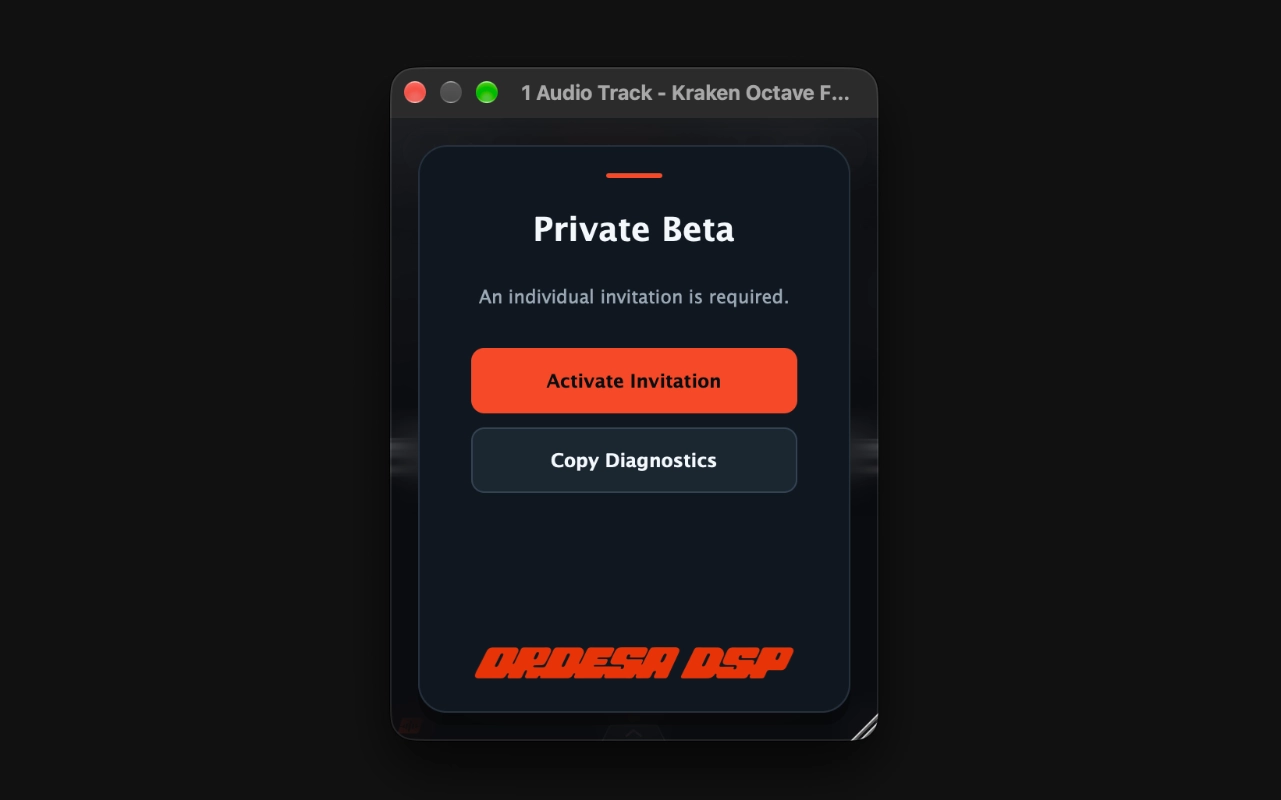
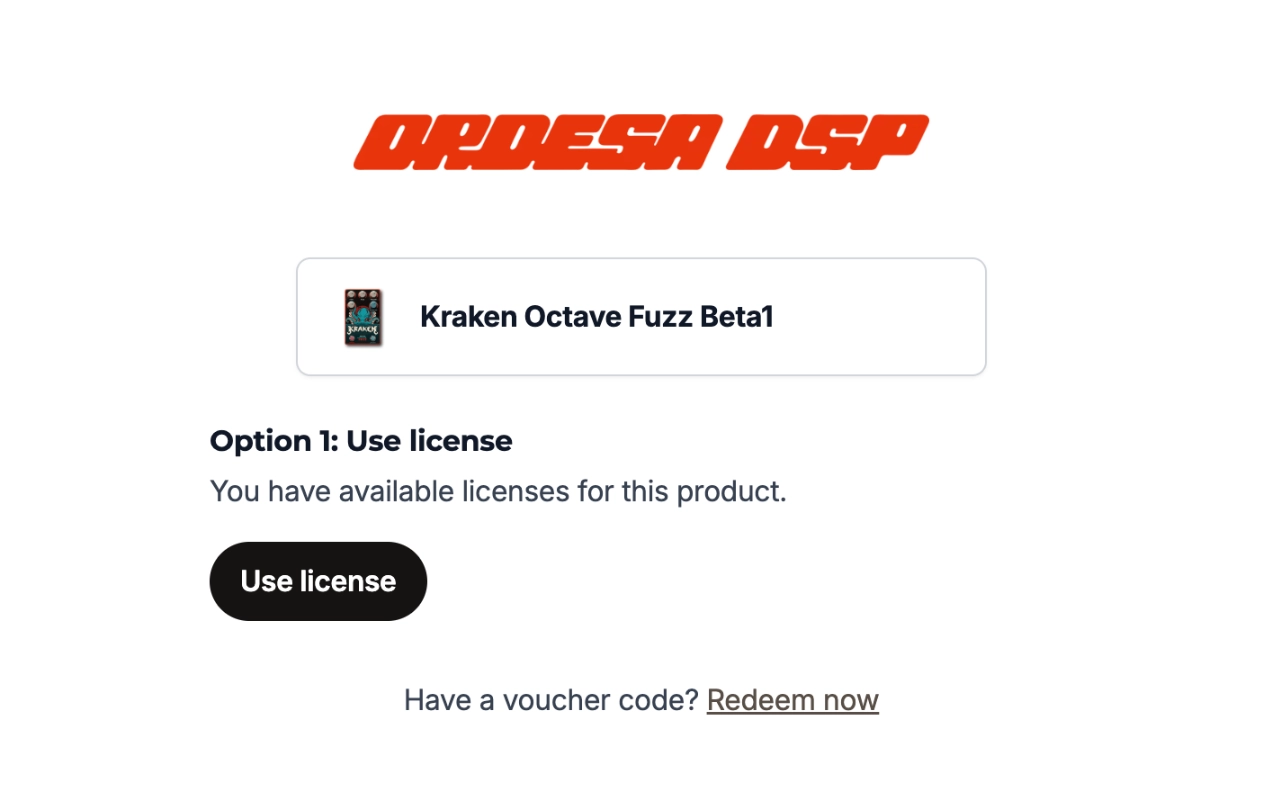
Kraken private beta license screen showing Activate Invitation
Click Activate Invitation inside Kraken.
Ordesa DSP browser activation page offering Use license for Kraken Octave Fuzz
Click Use license, complete activation, then return to Kraken.
License activationKRAKEN / 06 — 11
USER MANUAL BETA

Main controls.

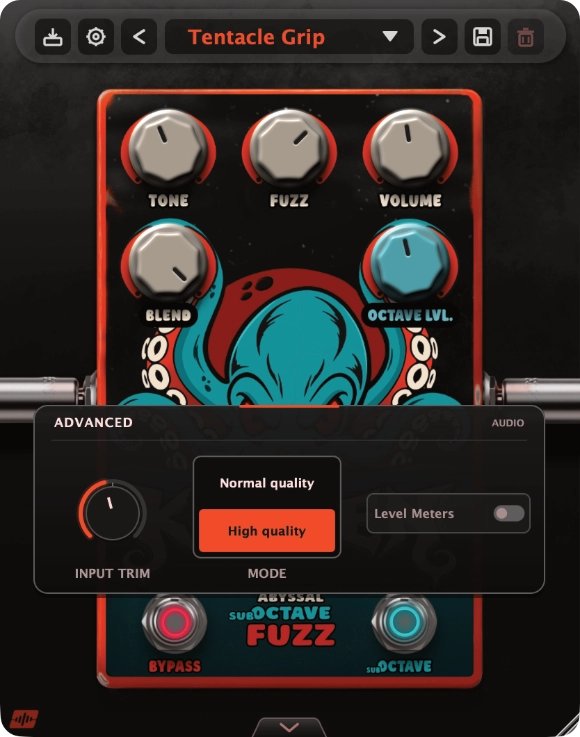
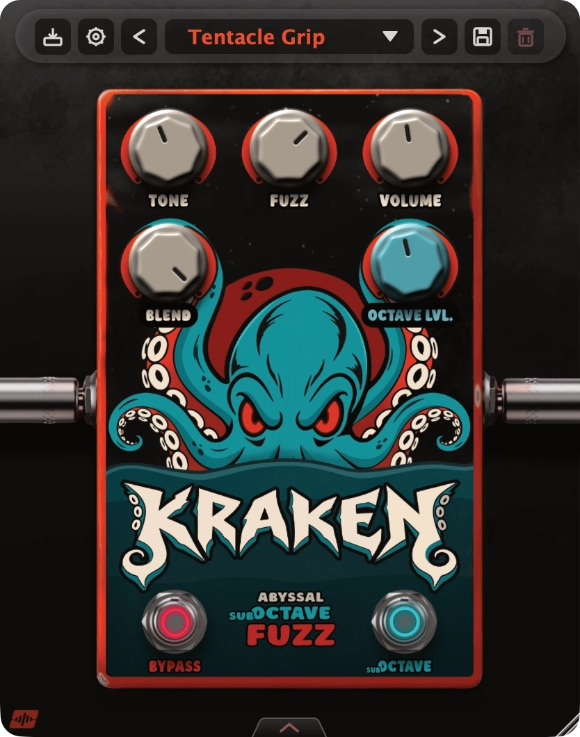
Main interface · Controls 01–08
01

Main Toolbar

Manage presets, save sounds, and access license and update settings.

02

Tone

Shapes the passive tone network from deep and dark to sharp and cutting.

03

Fuzz

Sets the intensity, compression and length of the fuzz.

04

Volume

Sets the final output level of the beast.

05

Blend

Mixes the fully processed octave-fuzz signal with the original input.

06

Octave Lvl.

Sets the level of the voice one octave below the original signal before the fuzz.

07

Bypass

Turns the effect on or off. When bypassed, the original signal passes through without processing.

08

Sub-Octave

Turns the octave-down voice on or off before the fuzz circuit.

Main controlsKRAKEN / 07 — 11
USER MANUAL BETA

Advanced settings.

Open the panel with the arrow at the bottom of the interface.
Advanced panel · Controls 09–11
09

Input Trim

Adjusts the level entering the fuzz circuit. Use it to compensate for hotter or quieter inputs.

10

Mode

Normal quality uses less CPU. High quality provides maximum processing quality.

11

Level meters

Shows or hides the lateral level meters.

Advanced settingsKRAKEN / 08 — 11
USER MANUAL BETA

Uninstall Kraken.

Save your project and close your DAW. Follow the steps for your operating system.

Windows

01

Open the VST3 folder

Press Windows + E to open File Explorer. Paste this path into the address bar and press Enter:

C:\Program Files\Common Files\VST3\
02

Delete Kraken

Select Kraken Octave Fuzz.vst3 and press Delete. If it appears as a folder, delete that entire .vst3 folder. Approve administrator permission if Windows asks.

macOS

01

Open the folder for your format

In Finder, press Shift + Command + G. Paste the path for the format you installed and press Return:

VST3

~/Library/Audio/Plug-Ins/VST3/

AU (Audio Units)

~/Library/Audio/Plug-Ins/Components/
02

Move the plugin to the Trash

Select Kraken Octave Fuzz.vst3 for VST3, or Kraken Octave Fuzz.component for AU. Press Command + Delete to move the entire item to the Trash.

If you installed both formats, remove both from their respective folders.

UninstallKRAKEN / 09 — 11
USER MANUAL BETA

Help & support.

macOS blocks the beta.

Follow the Terminal step for your format: VST3 or AU. Check the filename and folder. Repeat after a new beta download if needed.

No sound or unexpected levels.

Check track routing, Input Trim, Blend and Volume. Toggle Bypass to compare the original signal.

The sub-octave is not audible.

Enable Sub-Octave, raise Octave Lvl. and increase Blend so the processed signal is audible. Check that Bypass is off.

Playback struggles.

Select Normal quality in the advanced panel to reduce CPU use.

Help & supportKRAKEN / 10 — 11
USER MANUAL BETA

Version & changelog.

Plugin
Kraken Octave Fuzz 0.3.0 · Beta
Manual
Revision 01 24 October 2026 · English

Plugin changelog

0.3.0

Beta

  • Initial beta release.
CURRENT VERSION

New beasts.
Fresh tones.

Trial download

Trial downloads are available on desktop

This plugin installer is made for macOS and Windows. To download and install your 14-day trial, open this page on a PC or Mac.